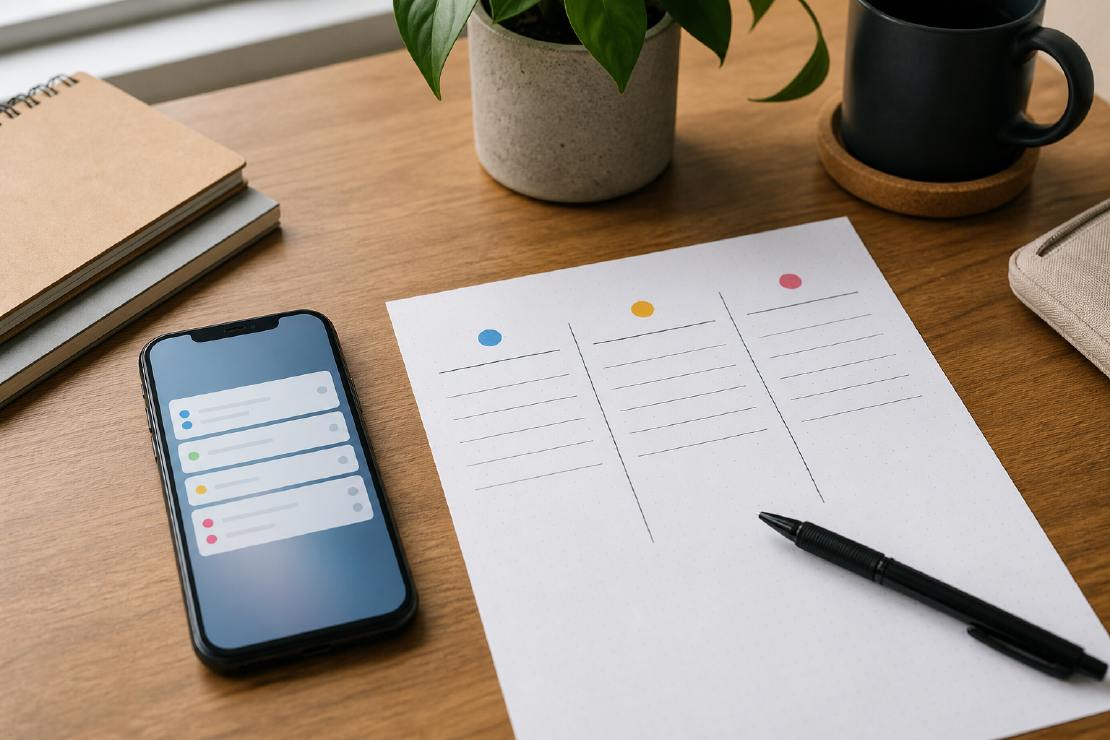
Turning off every notification works until a delivery, bank alert, family call or calendar reminder matters. The better setup is not silence. It is a small, explicit path for things allowed to interrupt you.
Start with people and consequences, not with a tour of every setting screen.
Divide notifications into three groups
Use these buckets:
| Group | Examples | Treatment |
|---|---|---|
| Immediate | Calls from family, security alerts, time-sensitive travel | Sound or vibration allowed |
| Useful but not urgent | Calendar, deliveries, direct messages | Visible, often silent |
| App agenda | Promotions, engagement prompts, “you missed this” | Off |
Judge the category by consequence: ask what happens if the alert waits two hours.
Audit categories, not only apps
| App and notification category | Must interrupt now? | Lock-screen preview? | Sound or vibration? | Allowed during focus? | Decision |
|---|---|---|---|---|---|
| Banking — security alert | Usually | Hide sensitive detail | Yes | Yes | Keep |
| Shopping — promotion | No | No | No | No | Disable |
| Delivery — arrival update | Sometimes | Minimal | Optional | Personal mode | Keep temporarily |
| Messaging — named contact | Depends on person | Choose for privacy | Depends on person | Selected modes | Configure |
Use the operating system’s per-category controls where available. One app can contain both a necessary security alert and an unnecessary promotion.
Remove noise at the source
Open the notification settings for the worst apps first. Social, shopping, games, news and food delivery often split alerts into categories. Keep transactional messages if useful and disable marketing or recommendation categories.
Unsubscribing inside the app can be better than blocking everything at the operating-system level, particularly when one useful alert type remains. If the app ignores its own preferences, use the system switch.
Build an allow-list for focused time
On iPhone, Focus can allow selected people and apps, schedule itself by time, location or app, and apply filters. On Android, Do Not Disturb and custom Modes can filter people, apps, alarms and other interruptions; exact menus vary by manufacturer.
Build the smallest allow-list that makes the mode safe:
- emergency contacts;
- school or childcare if relevant;
- calendar alarms needed for the day;
- home security;
- authentication prompts currently in use;
- a work contact only when truly on call.
Where the platform permits it, allow a priority contact or conversation instead of allowing every alert from the same messaging app.
Use different modes for different jobs
One permanent Do Not Disturb setup is usually too blunt. Create a few modes with clear purposes:
- Work: colleagues and calendar, no shopping or social alerts.
- Personal: family and friends, no work chat.
- Sleep: emergency path, alarms, almost nothing else.
- Driving: navigation and calls handled without looking at the screen.
A small number of reliable modes is easier to maintain than a complex set that is rarely activated.
Schedule predictable quiet
Automatic schedules remove the daily argument with yourself. Start and end Focus or a Mode around work blocks, sleep or commuting. Check that time zones, holidays and irregular shifts do not create a dangerous silent period.
Apple can share Focus across signed-in devices. This is helpful when desired and confusing when an iPad setting appears to silence an iPhone. Review cross-device behaviour deliberately.
Keep a review window
Silenced notifications still need somewhere to go. Check them at chosen times rather than whenever an app asks.
A practical rhythm might be:
- direct messages at lunch and late afternoon;
- personal email once or twice a day;
- news when intentionally opening a news source;
- shopping alerts only while intentionally tracking an order or price.
The objective is to keep notifications that provide timely value and disable categories that do not require attention.
Fix the lock screen
A silent notification can still pull attention if it lights the display and exposes a preview. Decide which apps can appear on the lock screen and whether message content should be visible while locked.
This is both an attention and privacy setting. A silent medical, banking or private-message preview can reveal more than its sound would.
Test the emergency path
After changing settings, ask a trusted person to call and message. Test alarms, calendar alerts and any security system. Check repeated-call behaviour and emergency-contact bypass settings only if you actually want them.
Run this test while awake so a missing exception can be corrected before the mode is relied upon overnight.
A 20-minute reset
- Disable promotional notifications from the five noisiest apps.
- Create one work or focus mode.
- Allow only necessary people and apps.
- Schedule it for one predictable block.
- Hide sensitive lock-screen previews.
- Test calls, alarms and urgent messages.
- Review after a week and remove more noise.
The result should reserve interruptions for categories that have a timely purpose.