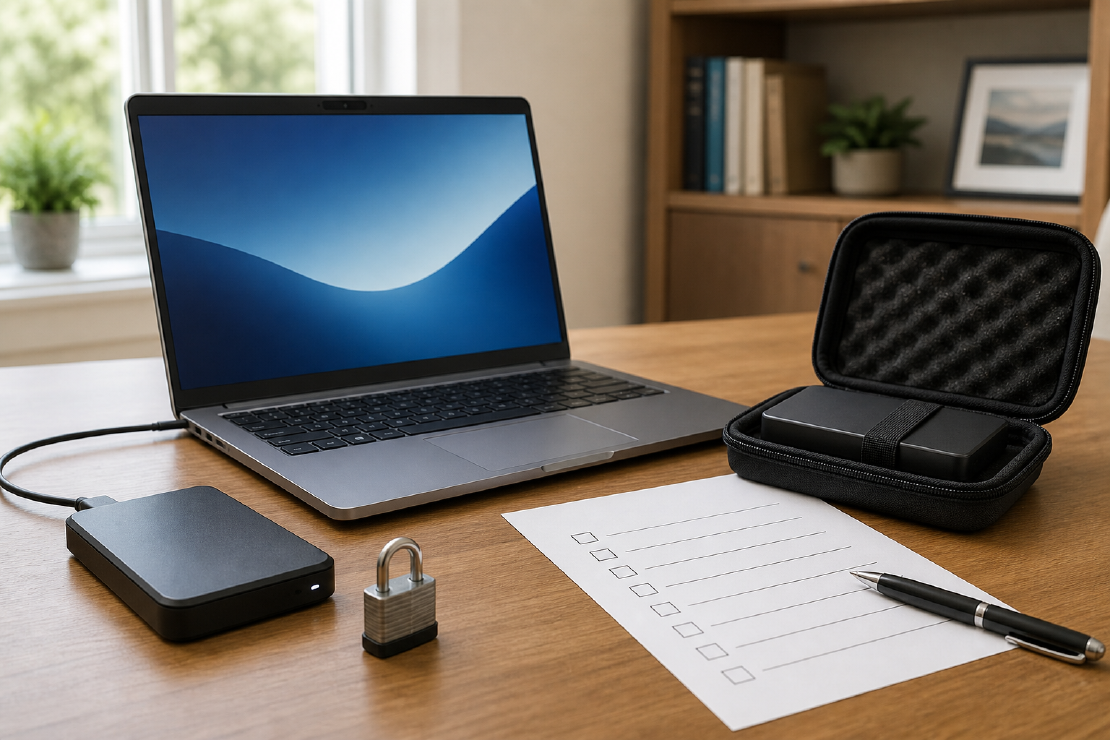
Sync is useful. Sync is not automatically a backup.
If deleting a file on the laptop also deletes it from the cloud folder, both copies can disappear together. Version history may rescue it, but only within the provider’s rules and retention period. A backup should survive a mistake, a broken device and a problem at home.
Use 3-2-1 as a test, not a shopping list
CISA’s basic rule is:
- keep three copies of important files;
- use two different media types;
- keep one copy off-site.
For a typical household, that can be:
- the working copy on the computer;
- an automatic backup to an external drive;
- an encrypted cloud backup or a second drive stored elsewhere.
A reliable setup is defined by independent copies that cannot all fail for the same reason, not by the amount of hardware involved.
Estimate the storage each destination needs
Start with the data that genuinely needs protection, not the advertised size of the computer’s drive. Then allow space for changed files and free headroom. This is a conservative planning estimate: compression, deduplication and the backup program’s retention rules can change the real requirement.
Backup storage planning estimate
Estimate capacity for one versioned backup destination.
This is not a guarantee of retention. Confirm the result against the backup software's own capacity and pruning documentation.
The calculation runs locally in your browser. No file names, sizes or results are transmitted or stored.
If the estimate is close to a drive’s full capacity, choose the next practical size. A backup destination that is almost full from day one has little room for growth or additional versions.
Decide what cannot be replaced
Prioritise:
- family photos and videos;
- personal documents;
- active creative work;
- tax, business and legal records;
- password-manager recovery information;
- exported data from services that could close or lock the account.
Applications and downloaded films are usually replaceable. A decade of photos is not. Spend redundancy where loss is permanent.
Separate sync from backup
Cloud drives are good for access and collaboration. They can also synchronise deletion, corruption or ransomware.
Check:
- whether version history exists;
- how long deleted files remain recoverable;
- whether the account can be restored after lockout;
- whether storage limits can stop uploads silently;
- whether all important folders are included;
- whether “online only” files exist locally at all.
Keep sync if it is useful. Add a backup that keeps independent versions.
Make one copy automatic
A backup plan dependent on remembering a cable every Friday will eventually miss several Fridays. Use the operating system’s backup tool or reputable backup software to run automatically when the drive or destination is available.
Look for:
- scheduled incremental backups;
- version history;
- clear failure warnings;
- encryption;
- a simple restore browser;
- support for the folders and external drives actually used.
The most useful system completes without supervision and produces a clear warning when it stops.
Keep one copy away from the computer
An external drive permanently attached to the same desk can be lost with the computer through theft, fire, water or electrical damage. It may also be reachable by malware.
Off-site options include:
- encrypted cloud backup;
- rotating two encrypted drives, with one stored elsewhere;
- a trusted location outside the home;
- a safe-deposit arrangement for archives that change rarely.
Sensitive off-site copies should be encrypted. A lost backup should not expose the information it was meant to protect.
Encrypt, then protect the recovery key
Encrypt portable drives and sensitive cloud backups. Store recovery information somewhere separate and durable. If the only recovery key is in the encrypted backup, the design has failed elegantly.
For cloud accounts, use a unique password and multi-factor authentication. Record account recovery details in a password manager and keep its emergency recovery method available.
Test a restore
A successful status icon proves that software wrote something. It does not prove that the right files can be recovered.
Every few months:
- choose a photo, document and project folder;
- restore them to a temporary location;
- open the files;
- check dates, folder structure and versions;
- confirm that the process works without the original device.
Also test after changing computers, backup software, cloud provider or encryption settings.
Watch for silent failure
Common failures include:
- a full destination drive;
- an expired payment card;
- a disconnected external disk;
- folders moved outside the backup scope;
- a sleeping laptop that never completes the job;
- a cloud client signed out after an update;
- errors hidden behind a green icon from the last successful run.
Set a monthly reminder to check the last successful backup date. That is less work than reconstructing a missing year.
A sensible basic setup
For most households:
- keep current files on the computer;
- use automatic versioned backup to an encrypted external drive;
- use encrypted off-site backup for irreplaceable folders;
- enable account MFA;
- test a small restore quarterly;
- review the whole setup after major device changes.
Keep the design clear enough that another trusted person could recover the files if necessary.