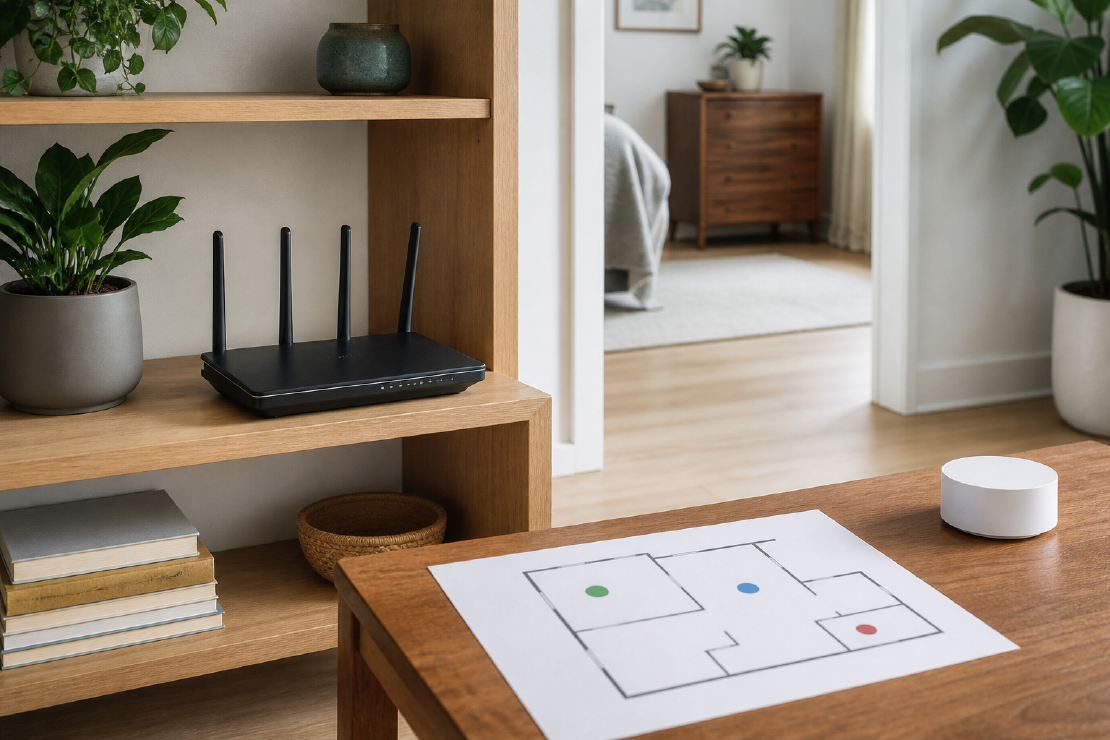
Before adding a mesh system, check whether the existing router can be placed centrally, higher up and away from obstructions.
Wi-Fi problems often come from poor placement, thick construction, interference or a slow internet connection. More hardware can help, but it can also repeat a weak signal and add another box without fixing the cause.
Separate internet speed from Wi-Fi speed
Test with a computer connected to the router by Ethernet where possible. If the wired result is also poor, moving the router will not repair the internet service, modem, line or provider congestion.
Then test Wi-Fi close to the router. A strong nearby result and weak distant result points toward coverage. A weak result beside the router suggests a different problem: device capability, router configuration, interference or the upstream connection.
Use the same test device and method when comparing locations.
Start central, elevated and visible
Google’s placement guidance recommends a central location, off the floor and in the open where possible. The FCC also advises central placement for home coverage.
Avoid hiding the router:
- inside a metal cabinet;
- behind a television and other electronics;
- on the floor in a corner;
- beside large appliances;
- at one extreme end of a long home;
- in a basement when most use is upstairs;
- behind dense masonry or foil-backed insulation where another route is possible.
The modem location may limit the router. A longer Ethernet cable is often cheaper and more effective than an entire wireless system.
Place for the rooms that matter
Perfect geometric centrality is not useful if the router ends up inside a utility closet. Prioritise workspaces, living areas and rooms with high-bandwidth or latency-sensitive devices.
A spare room used once a month does not need the same signal as the home office. Use Ethernet for fixed devices such as desktops, televisions or consoles when cabling is practical; this reduces wireless load and gives predictable performance.
Test one change at a time
Create a small map:
| Location | Download | Upload | Latency | Notes |
|---|---|---|---|---|
| Beside router | Baseline | |||
| Main workspace | Door open/closed | |||
| Bedroom | Weak corner? | |||
| Outdoor area | Through exterior wall |
Run more than one test because internet conditions vary. Check real tasks too: a video call, local file transfer or game latency may expose a problem a headline speed test hides.
Read the pattern before buying hardware
| Test pattern | Likely area to investigate next | Useful next check |
|---|---|---|
| Wired and Wi-Fi are both slow | Internet service, modem, line or router uplink | Provider status, modem link and wired test at another time |
| Wired is good; Wi-Fi is poor beside router | Router settings, interference or test-device capability | Test a second device and another clear channel |
| Wi-Fi is good nearby and poor in one room | Placement, construction or coverage | Move router, open/close doors, test midway |
| Only one device is poor | That device’s radio, driver or settings | Update it and compare on the same band |
| All devices degrade only at busy times | Interference or upstream congestion | Compare wired and wireless results at the same time |
| A mesh node reports a weak uplink | Node is too deep in the dead zone | Move it closer to the main router or use Ethernet backhaul |
These patterns narrow the investigation; they do not diagnose every network fault. Record the device, band, room and time with each result so unlike tests are not compared.
Understand 2.4, 5 and 6 GHz
Higher-frequency bands can provide more capacity under suitable conditions but generally have more difficulty through distance and obstacles. The best band depends on device support, channel use, walls and location.
A single band is not fastest in every room or for every device. A distant low-bandwidth device may be more reliable on 2.4 GHz, while a nearby compatible laptop can benefit from 5 or 6 GHz.
Automatic band steering can work well. It can also make troubleshooting less obvious. Change advanced settings only when there is a measured reason and a way back.
When mesh is justified
Mesh or additional access points become reasonable when:
- the home is too large for one practical router location;
- thick walls or multiple floors create dead zones;
- the internet enters at a poor edge location that cannot be changed;
- several important rooms remain weak after placement tests;
- Ethernet backhaul can connect access points;
- one network name and managed roaming are worth the cost.
Place wireless mesh nodes where they still receive a strong signal, not inside the dead zone. Google’s guidance suggests placing a point partway toward the area needing coverage and testing the mesh connection.
Extender, mesh or wired access point
| Option | Best use | Main weakness |
|---|---|---|
| Reposition existing router | First fix | Limited by cable and home layout |
| Simple extender | Small, low-demand dead spot | Can reduce performance and complicate roaming |
| Wireless mesh | Broad coverage without cabling | Nodes still need good wireless links |
| Wired access point | Reliable high-capacity coverage | Requires Ethernet installation |
If Ethernet is possible, a wired access point usually has a stronger foundation than repeating wireless through the same difficult wall.
The sensible order
- Test the wired internet connection.
- Test Wi-Fi beside the router.
- Move the router higher, more central and into the open.
- Cable fixed devices where practical.
- Map remaining dead zones.
- Add the smallest system that fixes those zones.
Correct placement and connection problems first, then add only the equipment needed for the remaining coverage gaps.